How to Publish Notion Pages to the Web
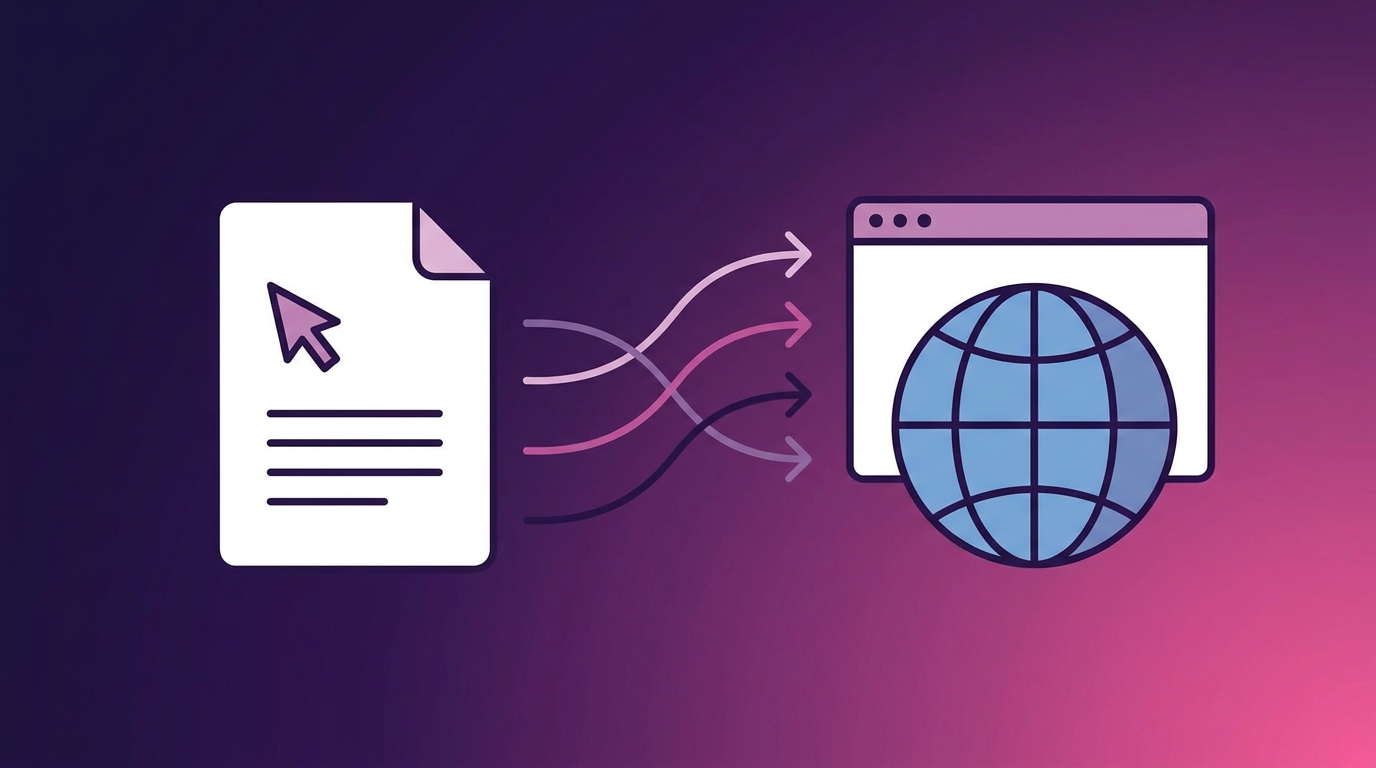
Notion's “Publish to web” button is the fastest way to share a page publicly. It's also the worst way to publish content you want people to actually find. No custom domain. No meta tags. No sitemap. Images hosted on temporary S3 URLs that expire within an hour. Google can't reliably index it, and readers see a notion.site URL instead of your brand.
If you want to publish Notion pages as real web content — with your own domain, SEO metadata, permanent images, and analytics — you need a publishing layer between Notion and the web. WordPress is the most common choice, and Notipo connects the two automatically.
Why Notion's Built-in Publishing Falls Short
Notion's native publish feature was designed for quick sharing, not for content that needs to rank or convert. Here's what's missing:
- No custom domain — every page lives on
yourworkspace.notion.site. You can't point your own domain at it without third-party workarounds. - No SEO control — no meta descriptions, no focus keywords, no canonical URLs. Google sees a generic Notion page with no optimization signals.
- Temporary images — Notion serves images from AWS S3 with signed URLs that expire after about one hour. Shared links, social previews, and cached pages all break once the URL rotates.
- No analytics — no page views, no traffic sources, no conversion tracking. You're publishing blind.
- No sitemap or RSS — search engines have no structured way to discover your pages. Crawling is slow and incomplete.
For internal docs or team wikis, none of this matters. For blog posts, landing pages, or any content meant to attract organic traffic, it's a dealbreaker.
The Two Approaches to Publishing Notion Pages
There are two common paths for getting Notion content onto a proper website:
1. Notion as a headless CMS with a custom frontend
Frameworks like Next.js or Astro can pull content from the Notion API and render it as static pages. This gives you full control over design and hosting, but you're building and maintaining a custom site. Every Notion block type needs a renderer. Image expiry needs a caching layer. SEO needs manual wiring. It works, but it's a development project, not a publishing workflow.
2. Notion synced to WordPress
WordPress already handles domains, SEO, sitemaps, analytics, and image hosting. The missing piece is getting content from Notion into WordPress without copy-pasting. A sync tool like Notipo bridges this gap — content flows from Notion to WordPress automatically, and WordPress handles everything else.
How Notipo Publishes Notion Pages to WordPress
The pipeline is straightforward:
- Write in Notion — use a database with properties for title, slug, category, tags, SEO keyword, and meta description. Write your content using Notion's editor as you normally would.
- Connect Notion and WordPress — Notipo connects to both via OAuth (Notion) and application passwords (WordPress). Setup takes about two minutes.
- Publish — change the page status or trigger a sync. Notipo converts Notion blocks to Gutenberg blocks, downloads and re-uploads images to your WordPress media library (permanent URLs), writes SEO metadata to your plugin, and optionally generates a featured image.
- Update — edit the Notion page and re-sync. Notipo updates the existing WordPress post in place — same URL, same post ID, no duplicates.
What Gets Synced
Every sync handles the full content stack:
- Text and formatting — headings, bold, italic, links, lists, blockquotes, callouts, toggles, dividers. Notion blocks map to Gutenberg blocks.
- Images — every image is downloaded from Notion's temporary URL and uploaded to your WordPress media library. The published post uses permanent WordPress URLs, not expiring S3 links.
- Code blocks — language detection preserved. Pair with Highlight.js or Prism.js for syntax highlighting on the frontend.
- SEO metadata — focus keyword, SEO title, and meta description written directly to your SEO plugin. Notipo auto-detects Rank Math, Yoast SEO, SEOPress, and All in One SEO.
- Featured images — generated automatically from the post title, or use a cover image from Notion. No manual design step.
- Categories and tags — mapped from Notion properties to WordPress taxonomies.
Setting Up Your Notion Database
Your Notion database needs a few standard properties to work with Notipo:
- Title — the page title (built-in Notion property)
- Slug — text property for the URL path
- Category — select property matching your WordPress categories
- Tags — multi-select property for WordPress tags
- SEO Keyword — text property for the focus keyword
- Meta Description — text property for the meta description
- Status — select property (Draft, Review, Publish)
Notipo maps these properties automatically during setup. The Notion setup guide walks through the full configuration.
Publishing via the API or CLI
Beyond the web dashboard, Notipo exposes a REST API and CLI for programmatic publishing. This is especially useful for AI agents, CI/CD pipelines, or any workflow where publishing is triggered by code rather than a button click.
A single API call handles the entire pipeline:
curl -X POST https://app.notipo.com/api/posts \
  -H "X-API-Key: your-api-key" \
  -H "Content-Type: application/json" \
  -d '{
    "title": "My Notion Page",
    "body": "# Content in markdown",
    "category": "Blog",
    "seoKeyword": "publish notion pages",
    "slug": "my-notion-page"
  }'
The API creates a Notion page, syncs it to WordPress, uploads images, writes SEO metadata, and generates a featured image — all in one request. See the API docs for the full reference.
Notion Publishing vs. Other Approaches
Here's how different approaches to publishing Notion pages compare:
- Notion native publish — instant, no setup. But no SEO, no custom domain, broken images after an hour. Only useful for quick internal sharing.
- Super.so / Potion.so — wraps Notion pages with a custom domain and some styling. Still depends on Notion's rendering, limited SEO control, and you're locked into their proxy layer.
- Custom Next.js / Astro site — maximum flexibility, but you're maintaining a codebase. Every new Notion block type needs a custom renderer. Image caching is your problem.
- Notipo + WordPress — Notion stays your writing tool, WordPress handles publishing. Full SEO control, permanent images, 4 SEO plugins supported, featured image generation. No code to maintain.
Limitations to Know
A few things to be aware of:
- One-way sync — content flows from Notion to WordPress only. Edits in wp-admin don't sync back to Notion. Notion is the source of truth.
- WordPress required — Notipo publishes to self-hosted WordPress sites. It doesn't work with WordPress.com free plans (no REST API access) or non-WordPress platforms.
- Block coverage — most Notion block types are supported. Databases-as-content, embeds, and some advanced layouts may not map perfectly to Gutenberg blocks.
FAQ
Can I publish Notion pages to the web?
Notion has a built-in “Publish to web” option, but it uses a notion.site subdomain with no SEO control, no custom domain, and temporary image URLs. To publish Notion pages properly — with your own domain, meta tags, and permanent images — sync them to WordPress using a tool like Notipo.
Do Notion published pages show up on Google?
Notion's native published pages are not reliably indexed by Google. They lack meta descriptions, canonical URLs, sitemaps, and structured data. Publishing to WordPress through Notipo gives you full SEO control — focus keywords, meta tags, and sitemap inclusion.
How do I publish Notion pages to my own domain?
Connect your Notion workspace and WordPress site through Notipo. When you publish a page in Notion, Notipo syncs the content, images, and metadata to WordPress — which serves it on your custom domain with proper SEO.
Is there a free way to publish Notion pages to WordPress?
Notipo's free tier lets you publish up to 5 pages per month to WordPress — including image caching, SEO metadata, and featured image generation. No credit card required. The Pro plan is $19/month with a 7-day free trial for unlimited posts.
Get Started
Create a free Notipo account and connect your Notion workspace and WordPress site. The getting started guide walks through setup in about two minutes. For more on how images are handled, see Notion to WordPress Images: Why They Break and How to Fix Them.
Ready to publish from Notion?
Set up in 5 minutes. Free plan available — no credit card required.
Get Started Free