WordPress Application Passwords: Setup & REST API Guide
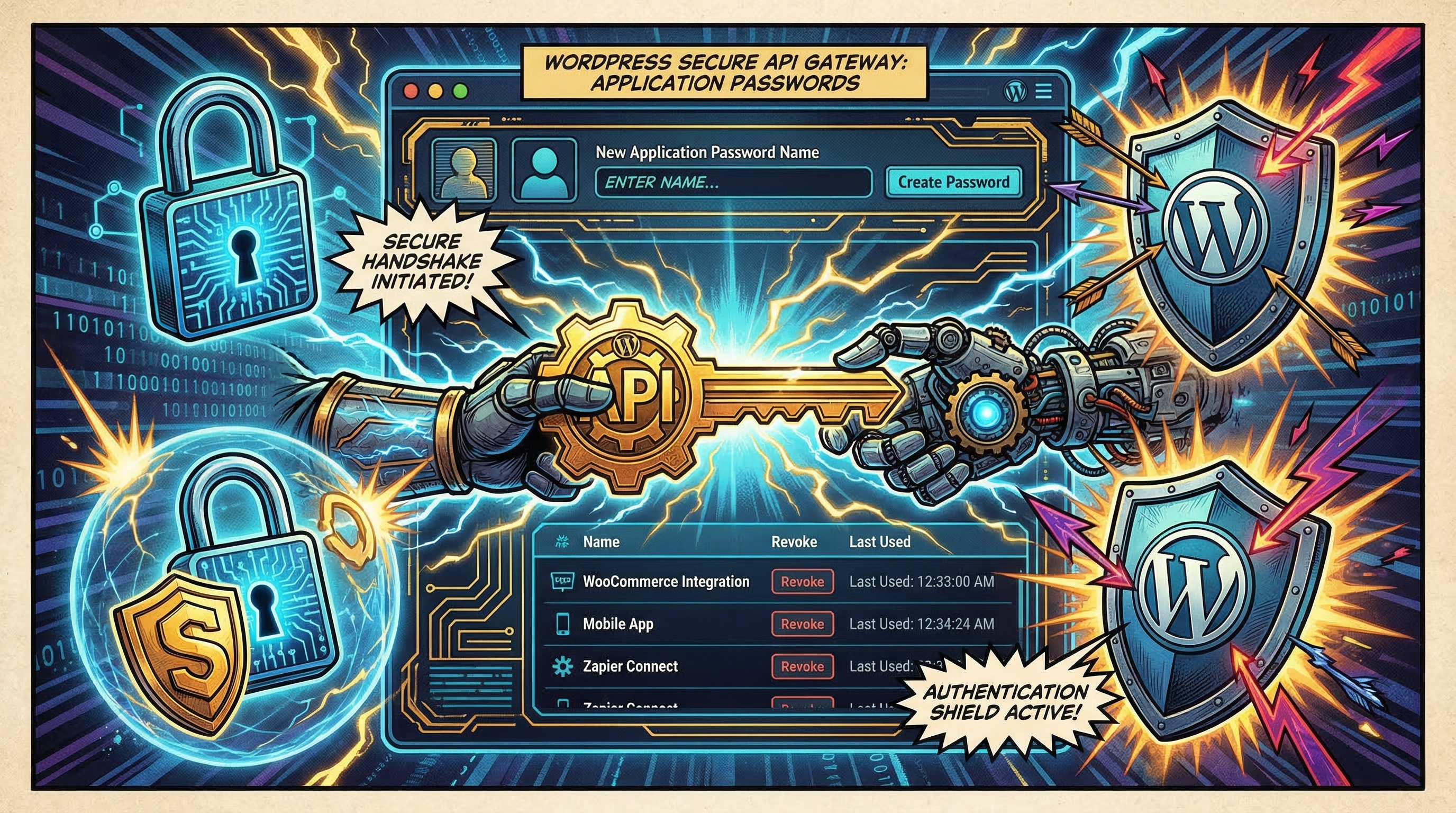
WordPress application passwords let external tools authenticate with the WordPress REST API without using your main login credentials. They were introduced in WordPress 5.6 and are the recommended way to connect services like publishing tools, mobile apps, and automation platforms to your site.
What Are Application Passwords?
An application password is a separate credential tied to your WordPress user account. It can only be used for API authentication — not for logging into wp-admin. Each application password has a name so you can track which service is using it, and you can revoke individual passwords without affecting others.
This is more secure than sharing your main password because:
- Each service gets its own password that can be revoked independently
- Application passwords can't be used to log into wp-admin
- You can see when each password was last used
- If a service is compromised, you revoke only that one password
Requirements
- WordPress 5.6+ — application passwords are built into core since version 5.6
- HTTPS — WordPress requires your site to use HTTPS for application passwords to work (unless you're on localhost)
- REST API enabled — the REST API is enabled by default, but some security plugins disable it
- Admin or Editor role — you need permission to create and publish posts
Creating an Application Password
- Log in to your WordPress admin panel (yourdomain.com/wp-admin)
- Go to Users → Profile (or click your username in the top-right corner)
- Scroll down to the Application Passwords section at the bottom of the page
- Enter a descriptive name for the password (e.g. “Notipo”, “Mobile App”, or “Zapier”)
- Click Add New Application Password
- Copy the generated password immediately — it's shown only once. It looks like
ABCD 1234 EFGH 5678 IJKL 9012
Using Application Passwords with the REST API
Application passwords use HTTP Basic Authentication. Pass your WordPress username and the application password as the credentials. Here's a curl example:
curl -X GET https://yourdomain.com/wp-json/wp/v2/posts \
  -u "your-username:ABCD 1234 EFGH 5678 IJKL 9012"
The spaces in the password are optional — WordPress strips them. You can also make authenticated requests to create posts:
curl -X POST https://yourdomain.com/wp-json/wp/v2/posts \
  -u "your-username:ABCD1234EFGH5678IJKL9012" \
  -H "Content-Type: application/json" \
  -d '{"title":"My Post","content":"Hello world","status":"draft"}'
Common REST API Endpoints
Once authenticated, you can interact with most WordPress content types:
| Endpoint | Description |
|---|---|
/wp-json/wp/v2/posts | Create, read, update, delete posts |
/wp-json/wp/v2/media | Upload images and files |
/wp-json/wp/v2/categories | Manage categories |
/wp-json/wp/v2/tags | Manage tags |
/wp-json/wp/v2/users/me | Get the authenticated user's profile |
Troubleshooting
“Application Passwords” section is missing
- Your site must use HTTPS. WordPress hides the section on plain HTTP sites.
- A security plugin may be disabling it. Check iThemes Security, Wordfence, or similar plugins for a setting that blocks application passwords.
- Some managed WordPress hosts disable the REST API or application passwords. Check your host's documentation.
401 Unauthorized errors
- Double-check the username — it's case-sensitive and must match exactly.
- Make sure you're using the application password, not your wp-admin login password.
- Verify your site is on HTTPS — the REST API rejects Basic Auth over HTTP in production.
- Some .htaccess configurations or server setups strip the Authorization header. If you're on Apache, you may need to add
SetEnvIf Authorization "(.*)" HTTP_AUTHORIZATION=$1to your .htaccess file.
403 Forbidden errors
- The user account doesn't have the required capabilities. Use an Administrator or Editor account.
- A security plugin or WAF (like Cloudflare) may be blocking REST API requests. Check your firewall rules.
Security Best Practices
- One password per service — create a separate application password for each tool. If one is compromised, revoke only that one.
- Use descriptive names — name them after the service so you know what each password is for.
- Revoke unused passwords — if you stop using a service, delete its application password immediately.
- Monitor usage — WordPress shows the “Last Used” date for each application password. Check periodically for unexpected activity.
- Never share your main password — always use application passwords for API access.
Connecting External Tools
Many tools use application passwords to integrate with WordPress. The setup is typically the same: enter your site URL, username, and application password. The tool then uses the REST API to create posts, upload media, or manage content.
Notipo uses application passwords to publish posts from Notion to WordPress. After entering your credentials, Notipo validates the connection before saving — so you'll know immediately if something is wrong. See the WordPress Setup guide for step-by-step instructions.
Once connected, you can publish posts from Notion to WordPress with a single status change, automate Rank Math SEO metadata, and add syntax highlighting for code blocks.
Ready to publish from Notion?
Set up in 5 minutes. Free plan available — no credit card required.
Get Started Free