Notion SEO: How to Rank Your Notion Content on Google
Notion is a great writing environment. Clean interface, real-time collaboration, flexible databases. But when it comes to SEO, Notion pages have serious limitations. No meta tags. No custom slugs. No sitemap. No page speed optimization. Google can index a published Notion page, but it won't rank it well.
The fix isn't to stop using Notion — it's to publish your Notion content to WordPress, where you have full control over every SEO signal. Notipo automates this: write in Notion, sync to WordPress with meta tags, focus keywords, featured images, and clean URLs — all without leaving your Notion database.
Why Notion Pages Don't Rank
Published Notion pages are technically indexable. Google can crawl them. But they lack the fundamentals that search engines use to rank content:
- No meta tags — You can't set a custom SEO title or meta description. Google generates both from your page content, often poorly.
- No custom URLs — Notion URLs include a random hash (
notion.site/My-Post-a1b2c3d4). No keyword-rich slugs. - No sitemap — Notion doesn't generate a sitemap.xml. Search engines discover your pages slowly, if at all.
- Slow page speed — Notion pages load JavaScript-heavy SPAs. Core Web Vitals suffer.
- No structured data — No JSON-LD, no FAQ schema, no article markup. You miss rich snippets entirely.
- No image optimization — No alt text control, no lazy loading, no responsive images.
You can use a custom domain with Notion, but that only fixes the URL root — the path still contains a hash, and every other limitation remains. For content that needs to rank, you need a real publishing platform.
WordPress Solves the SEO Problem
WordPress powers over 40% of the web for good reason. It gives you everything Notion doesn't:
- Custom meta titles and descriptions via SEO plugins
- Clean, keyword-rich URL slugs
- Auto-generated sitemaps
- Server-rendered HTML for fast page speed
- Full control over structured data (schema.org, JSON-LD)
- Image optimization with alt text, lazy loading, and responsive srcsets
The trade-off? Writing in WordPress is clunky. The block editor works, but it's not Notion. That's where the Notion-to-WordPress publishing pipeline comes in: keep Notion as your writing environment, use WordPress as your SEO-optimized publishing layer.
Setting Up Notion SEO with Notipo
Notipo syncs your Notion database to WordPress automatically. Here's how to configure it for maximum SEO impact.
1. Add SEO Properties to Your Notion Database
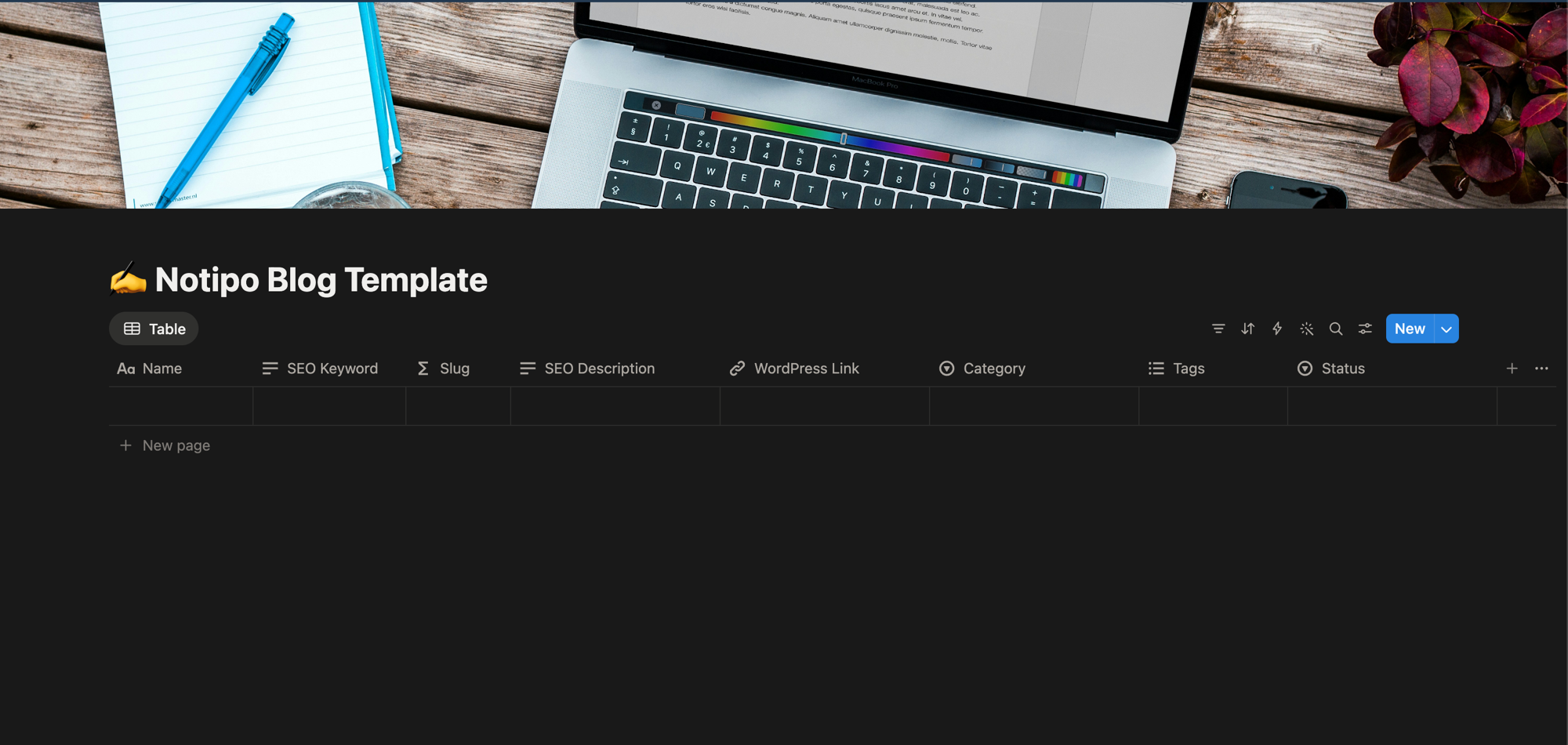
The Notipo blog template includes these SEO-relevant properties:
- SEO Keyword — Your target focus keyword for the post. Notipo writes this directly to your WordPress SEO plugin.
- Slug — A clean URL path like
notion-seoinstead of Notion's random hash. This becomes your WordPress permalink. - Category — Maps to WordPress categories, which create a logical site structure for crawlers.
- Tags — Maps to WordPress tags for additional topic signals.
2. Install a WordPress SEO Plugin
Notipo auto-detects and writes metadata to four major SEO plugins:
- Rank Math
- Yoast SEO
- SEOPress
- All in One SEO
Install any one of these. When Notipo connects to your WordPress site, it detects which plugin is active and writes the SEO Keyword, SEO title (from the post title), and meta description (from the first ~160 characters) on every sync. No configuration needed.
3. Set Up Featured Images
Featured images affect both click-through rates in search results and social sharing previews. Notipo generates them automatically in two modes:
- Standard — Pulls a background from Unsplash (or uses a custom image per category) and overlays the post title using Sharp. Result: a consistent 1200×628 branded image for every post.
- AI-generated (Pro plan) — Uses Google Gemini to generate a unique image from the post title. More creative, fully automated.
Both modes produce images optimized for Open Graph and Twitter Cards. The image title and alt text are set automatically from the post title — which means your featured image reinforces your target keyword for image SEO.
4. Use Notion Headings and Image Captions
Notion H2 and H3 blocks map directly to WordPress headings. Use them to structure your content around your target keyword and related terms. Search engines use heading hierarchy to understand content structure — a post with clear H2 sections ranks better than a wall of text.
Notion image captions become WordPress alt text. Add descriptive captions to every image — search engines use alt text for image search ranking, and it improves accessibility.
What Notipo Handles Automatically
Once connected, Notipo takes care of these SEO tasks on every sync — no manual work in wp-admin:
- Focus keyword → Written to Rank Math, Yoast, SEOPress, or All in One SEO
- SEO title → Set from the Notion post title
- Meta description → Generated from the first ~160 characters, refined on publish
- URL slug → Set from the Slug property in Notion
- Categories and tags → Mapped from Notion properties
- Featured image → Generated automatically (Standard or AI)
- Image handling → Notion S3 URLs expire after ~1 hour. Notipo downloads every image, uploads it to your WordPress media library, and caches the mapping. No broken images.
- Code blocks → Converted to WordPress with syntax highlighting support
SEO Checklist for Notion Writers
Before changing a post's status to sync, run through this checklist:
- Set the SEO Keyword — One focused keyword per post. This is the term you want to rank for.
- Set the Slug — Short, keyword-rich, lowercase. Example:
notion-seonothow-to-optimize-your-notion-pages-for-search-engines. - Use the keyword in your title — The post title becomes the SEO title.
- Use the keyword in the first paragraph — Search engines weight early content.
- Add H2 headings — Structure your content. Use related terms in headings.
- Caption your images — Every image should have a descriptive caption (becomes alt text).
- Write at least 800 words — Thin content rarely ranks. Aim for 800–2000 words for standard posts.
- Link internally — Reference related posts on your site. Internal links help crawlers discover content and distribute page authority.
Before / After: A Notion Post Optimized for SEO
What the checklist looks like in practice. Same post, two states of Notion database properties.
Before — empty template, columns defined but nothing filled in. This is the Notipo Blog Template Notion database you start with:
After — same database with the checklist applied across real posts. Every row has SEO Keyword, Slug, Category, Tags, and a Status that drives WordPress sync:
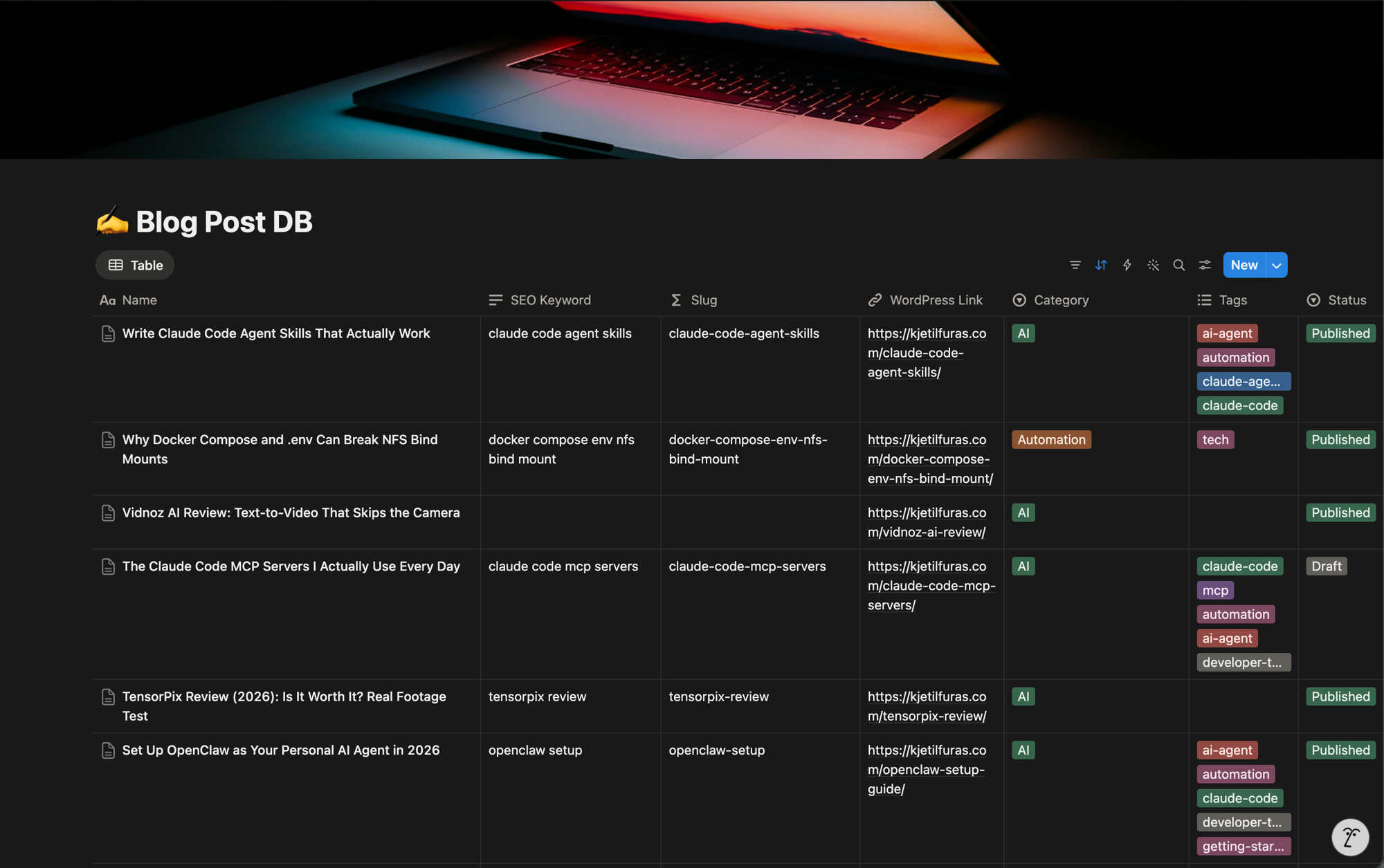
When you flip Status to Post to WordPress, Notipo writes the SEO Keyword into Rank Math's focus-keyword field, the slug into the WordPress post URL, and uploads any inline images to the WordPress media library. Every checklist item lands in the right place automatically.
The Publishing Workflow
Here's what the full Notion SEO workflow looks like with Notipo:
- Write your post in Notion with SEO Keyword, Slug, Category, and Tags filled in
- Set the status to “Post to WordPress” — Notipo syncs the post as a WordPress draft with all SEO metadata, featured image, and images
- Review in wp-admin if needed — SEO plugin fields are already filled in
- Set the status to “Publish” — Notipo publishes the post live on WordPress
That's it. One database, two status changes, fully optimized WordPress posts. For the detailed setup, see our step-by-step publishing guide.
FAQ
Can Notion pages rank on Google?
Published Notion pages are indexable but lack meta tags, custom URLs, sitemaps, and page speed — all critical ranking factors. Publishing to WordPress via a tool like Notipo gives you full SEO control while keeping Notion as your writing environment.
Does Notipo support Yoast SEO?
Yes. Notipo auto-detects and writes SEO metadata to Yoast SEO, Rank Math, SEOPress, and All in One SEO. No configuration needed — install any of these plugins and Notipo fills in the focus keyword, SEO title, and meta description on every sync.
How do I set SEO keywords in Notion for WordPress?
Add an SEO Keyword property to your Notion database. When Notipo syncs the post to WordPress, it writes that keyword to whichever SEO plugin you have installed. The post title becomes the SEO title, and the first ~160 characters become the meta description.
Is Notipo free for SEO features?
SEO metadata automation works on both the Free plan (5 posts per month) and the Pro plan ($19/month, unlimited posts). AI-generated featured images require the Pro plan.
Get Started
Create a free Notipo account, connect your Notion workspace and WordPress site, and start publishing SEO-optimized content from Notion. The getting started guide walks you through the full setup in under 5 minutes.
For WordPress connection details, see the application passwords guide. For team workflows, see The Best Notion Blog Workflow for Content Teams.
Ready to publish from Notion?
Set up in 5 minutes. Free plan available — no credit card required.
Get Started Free