Rank Math + Notion: Auto-Sync SEO Metadata to WordPress (2026)
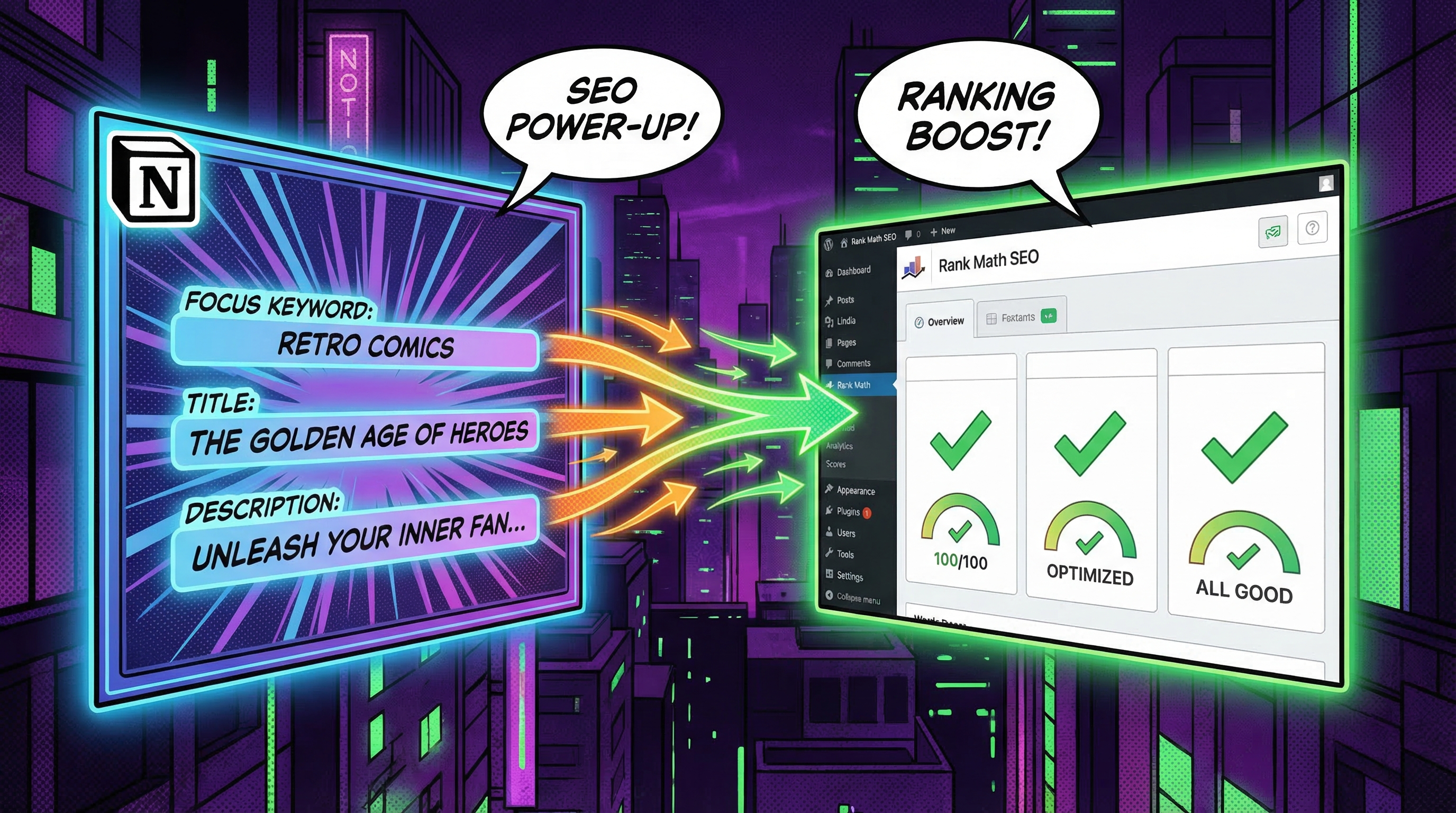
Rank Math is one of the most popular WordPress SEO plugins. It lets you set a focus keyword, SEO title, and meta description for every post. But if you write in Notion and publish to WordPress, filling in SEO fields manually in wp-admin after every sync defeats the purpose of automation.
Notipo writes SEO metadata directly to Rank Math using its native REST API — no code snippets, no functions.php edits, no extra plugins. Just install Rank Math and Notipo handles the rest.
Why Manual Rank Math Entry Defeats the Point
If you write blog posts in Notion and publish them through any sync tool, the typical flow without automation looks like this: draft in Notion, sync to WordPress as a draft, then click into wp-admin, scroll to the Rank Math panel, type the focus keyword, type the SEO title, type the meta description, save. Every. Single. Post.
That breaks the entire premise of writing in Notion. The whole reason to use a Notion-to-WordPress workflow is to never log into wp-admin for routine content work. The moment you have to click into Rank Math's panel after every sync, you've moved the bottleneck — not removed it. And the cost compounds: across 50 posts a year, that's an hour of mechanical data entry no one enjoys, with the usual human cost of forgotten keywords and inconsistent meta descriptions.
The fix isn't a faster way to type in wp-admin. The fix is to let Notion be the source of truth and let the sync layer write directly to Rank Math's API. That's what the rest of this guide walks through.
How Notipo Connects to Rank Math
Rank Math ships with a native REST endpoint at /rankmath/v1/updateMeta. Notipo POSTs to this endpoint every time it syncs a post from Notion. The request body looks like this:
POST /wp-json/rankmath/v1/updateMeta
Authorization: Basic <base64(username:app-password)>
Content-Type: application/json

{
  "objectID": 1234,
  "objectType": "post",
  "meta": {
    "rank_math_focus_keyword": "rank math notion",
    "rank_math_title": "Rank Math + Notion: Auto-Sync SEO to WordPress",
    "rank_math_description": "Sync Rank Math metadata from Notion automatically..."
  }
}
Three fields are written on every sync:
rank_math_focus_keyword— the target keyword Rank Math uses for content analysisrank_math_title— the SEO title shown in search results and the browser tabrank_math_description— the meta description shown under the title in search results
Notipo detects Rank Math during the WordPress connection step. It scans the active plugin list, finds seo-by-rank-math/ in the slug, and stores the detected plugin per tenant. From that point on, the SEO write step uses Rank Math's endpoint. If you swap to a different SEO plugin later, reconnect WordPress in Notipo's settings to re-detect.
Rank Math vs Yoast: Which to Pick for Notion Publishing
Both Rank Math and Yoast SEO are supported by Notipo, so the choice comes down to which plugin fits your workflow — not which one Notipo prefers. Here's the practical breakdown:
| Feature | Rank Math (free) | Yoast SEO (free) |
|---|---|---|
| Notipo integration | Native REST API, no extra plugin | Requires Notipo's companion plugin |
| Focus keywords per post | Up to 5 (free tier) | 1 (free tier) |
| Schema types out of the box | 15+ (Article, Product, Recipe, FAQ, HowTo, ...) | ~5 (Article, Person, Organization, ...) |
| FAQ block (auto schema) | Built-in, Notipo converts markdown FAQ sections automatically | Built-in |
| Content analysis | Single-keyword + LSI suggestions | Single-keyword, simpler rubric |
For a Notion-first workflow, Rank Math has a small edge: no companion plugin needed on the WordPress side, more schema types out of the box, and the FAQ block integration means writing a markdown FAQ section in Notion automatically produces FAQ schema in search results. Yoast still works — pick it if you're already on Yoast and have site-wide SEO history there.
Step 1: Install Rank Math
If you haven't already:
- In wp-admin, go to Plugins → Add New
- Search for “Rank Math SEO”
- Install and activate the plugin
- Run the setup wizard — for most blogs, the default settings work fine
That's all the WordPress setup you need. No code snippets, no functions.php edits, no REST API registration — Rank Math's API handles everything natively.
Step 2: Define SEO Metadata in Notion
The Notipo blog template includes an SEO Keyword property. For each post, fill in the focus keyword you're targeting — the same keyword you'd normally enter in the Rank Math panel in wp-admin.
When Notipo syncs the post to WordPress, it automatically sets:
- Focus keyword — from the SEO Keyword property in Notion
- SEO title — from the post title
- Meta description — generated from the first ~160 characters of the post content
When you later publish the post, Notipo refreshes the meta description with the WordPress-generated excerpt for a more polished result.
Step 3: Verify It's Working
After syncing a post from Notion:
- Open the post in wp-admin
- Click the Rank Math SEO icon in the top-right toolbar
- You should see the focus keyword, SEO title, and meta description already filled in
- The Rank Math score will reflect the automated metadata
Beyond Meta Tags: What Else Notipo Activates in Rank Math
The three meta fields are the most-asked-about feature, but Notipo's Rank Math integration covers two more things that quietly matter for SEO outcomes — both happen automatically once Rank Math is detected, no extra config.
Markdown FAQ sections become Rank Math FAQ blocks
Write an H2 or H3 named “FAQ” (or “Frequently Asked Questions”) in Notion, followed by question/answer pairs, and Notipo converts that section into Rank Math's native wp:rank-math/faq-block Gutenberg block during sync. Rank Math then generates FAQPage schema for that block automatically — the kind of structured data that earns rich-result eligibility in Google's SERP (the collapsible FAQ accordions that show under your snippet). You don't touch the FAQ block builder in wp-admin; it's populated from your Notion content.
Article schema fields stay accurate across sync + republish
Rank Math auto-generates BlogPosting/Article schema for every published post. Notipo keeps the inputs Rank Math uses for that schema accurate — primarily the post title, slug, publish date, and meta description. When you re-sync a post from Notion (the Update WordPress trigger), Rank Math re-generates the schema with the updated values. No manual schema editing required.
Troubleshooting
SEO fields are empty after syncing
- Make sure Rank Math is installed and activated
- Try disconnecting and reconnecting WordPress in Notipo settings — this re-detects Rank Math
- Check that the SEO Keyword property is filled in for the post in Notion
Focus keyword shows but Rank Math score is low
Rank Math's score is calculated based on content analysis — keyword density, heading usage, image alt text, and more. The focus keyword sets the target; you still need to write content that Rank Math considers well-optimized for that keyword. Click the Rank Math icon in the top-right toolbar of wp-admin to see specific recommendations.
Multiple SEO plugins installed — wrong one is being written to
If both Rank Math and Yoast are active simultaneously, Notipo detects whichever appears first in WordPress's active plugin list. This usually picks the right one but isn't deterministic if both were installed in quick succession. The fix: deactivate the one you don't use (running two SEO plugins also breaks schema output and hurts Core Web Vitals), then reconnect WordPress in Notipo settings to re-detect.
FAQ section synced but FAQPage schema isn't appearing
Two things to check. First, the heading must be exactly “FAQ” or “Frequently Asked Questions” — variants like “Common Questions” or “Q&A” aren't detected by the Gutenberg converter. Second, Rank Math's FAQ schema only fires when the faq-block is in the post body (verify in wp-admin block editor — you should see a “FAQ by Rank Math” block, not paragraph blocks). If you see paragraphs instead, the markdown structure didn't match (each Q must be H3 immediately followed by paragraph/list answer).
Cache plugin shows old meta description after edit
WP Rocket, W3 Total Cache, and similar plugins cache the rendered page HTML — including the meta tags Rank Math generates. After re-syncing a post with updated metadata, purge the cache for that single page in your cache plugin's admin (or just save the post in wp-admin, which usually triggers a per-post cache invalidation). Search engines see the new metadata only after the cached HTML is regenerated.
SEO Tips for Notion Bloggers
- One keyword per post — keep it focused. Don't try to rank for multiple unrelated terms in one article.
- Use the keyword in your title — the post title becomes the SEO title, so include the keyword naturally.
- Use headings — Notion H2 and H3 headings become WordPress headings, which Rank Math uses for content structure analysis.
- Write a clear slug — fill in the Slug property in Notion with a clean, keyword-rich URL slug (e.g.
rank-math-notion-seo). - Add alt text to images — Notion image captions become WordPress alt text, which helps with image SEO.
Frequently Asked Questions
Does Notipo work with the free version of Rank Math, or do I need Rank Math Pro?
It works with the free version. The /rankmath/v1/updateMeta REST endpoint Notipo uses ships with the core Rank Math plugin — no Pro license required. The same applies to FAQ blocks, breadcrumbs, and the standard schema types Rank Math generates automatically.
Can I still edit SEO metadata directly in wp-admin after Notipo syncs it?
Yes. Notipo writes the fields once on sync — after that, they behave like any other Rank Math entry. If you edit the focus keyword, title, or description in wp-admin, your changes stick until the next Notion-triggered re-sync, which overwrites them again. If you want to lock in a manually-tuned title, set it in Notion (post title or SEO Keyword property) instead of in wp-admin.
What if I use Yoast or SEOPress instead of Rank Math?
Both are supported. SEOPress uses its own native REST API (/seopress/v1/posts/{id}/title-description-metas) and works out of the box. Yoast and All in One SEO require Notipo's small companion plugin (notipo-seo) — it exposes their meta fields via REST since neither one ships an official write endpoint. Notipo auto-detects which plugin is active on your site during the WordPress connection.
Does setting the focus keyword automatically give me a green Rank Math score?
No, and it shouldn't. The score is calculated from actual content analysis: keyword density, heading usage, internal links, image alt text, content length, and more. Notipo sets the target so Rank Math knows what to analyze against — getting a green score is about how the post is written, not just whether the field is filled.
Can Notipo set the canonical URL via Rank Math?
Not directly — Notipo doesn't write a custom canonical because WordPress generates one automatically from the post slug. If you need a non-standard canonical (cross-posting from a primary site, for example), set it manually in the Rank Math panel after sync. The next re-sync won't overwrite it because canonical isn't in the three fields Notipo writes.
What about FAQ schema and HowTo schema?
Notipo converts markdown FAQ sections (an H2 or H3 named 'FAQ' or 'Frequently Asked Questions' followed by Q&A pairs) into Rank Math's native faq-block during Gutenberg conversion. Rank Math then auto-generates FAQPage schema for that block — no extra configuration. HowTo schema isn't auto-generated; for that, use Rank Math's built-in HowTo block manually.
What if my WordPress site doesn't have any SEO plugin installed?
Notipo falls back to writing the standard Yoast post-meta fields directly (_yoast_wpseo_focuskw, _yoast_wpseo_title, _yoast_wpseo_metadesc). If you install Yoast later, your previously-synced posts will already have the data populated. The score will be empty until Yoast runs its analysis pass, which happens on next save.
Does the Rank Math sync work with custom post types?
Notipo currently writes to standard WordPress posts only (objectType: 'post' in the updateMeta payload). Custom post types like 'product' or 'event' aren't covered — those would need an extension to the WordPress service. If you have a strong use case, open an issue on github.com/kfuras/notipo-app.
Getting Started
SEO metadata automation is available on both the Free and Pro plans. Create your account, connect Notion and WordPress, install Rank Math, and your SEO workflow is fully automated. See the WordPress Setup guide for the full connection process.
Need help with the WordPress connection? Start with our application passwords guide. For the full Notion-to-WordPress workflow, see How to Publish from Notion to WordPress.
Ready to publish from Notion?
Set up in 5 minutes. Free plan available — no credit card required.
Get Started Free